How do I create a cohort in PBISEval Next?

Modified on Wed, 16 Sep at 3:08 PM


To create your cohort:
  1. Log in to Eval Next.
  2. Click on the Settings icon that looks like a gear in the upper right-hand corner of the screen.
  3. Select Cohorts from the Settings menu.
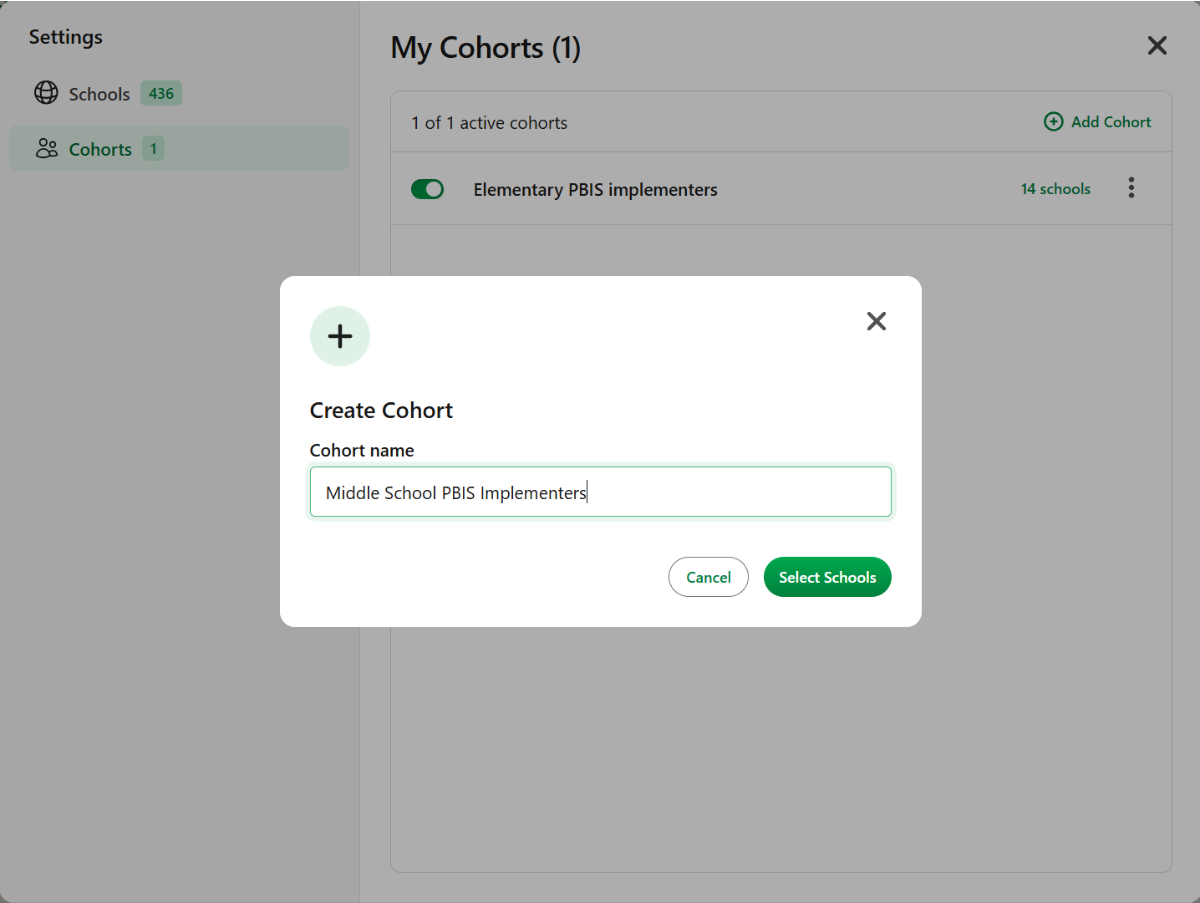
  4. Click Add Cohort in the right-hand corner of that window.
  5. Give the new cohort a name. It should be something that easily identifies it as that specific group of schools. After you've given the cohort a name...
  6. Click the Select Schools button.
  7. Check the box next to the name of any school you'd like to add to this cohort. Tip: You can use the Filter Results search box to type the name of any school you're looking to add to the cohort. When you finish adding schools to the cohort...
  8. Head back to the top of the schools list and click Save Cohort.
  9. The cohort you create now appears on your My Cohorts list with the active toggle enabled. Toggle this off any time you want to keep that group of schools, but don't want that cohort to appear on drop-down menus throughout the application...think of it as a way to archive the cohort for later just in case.


Was this article helpful?

That’s Great!

Thank you for your feedback

Sorry! We couldn't be helpful

Thank you for your feedback

Let us know how can we improve this article!

Select at least one of the reasons
CAPTCHA verification is required.

Feedback sent

We appreciate your effort and will try to fix the article